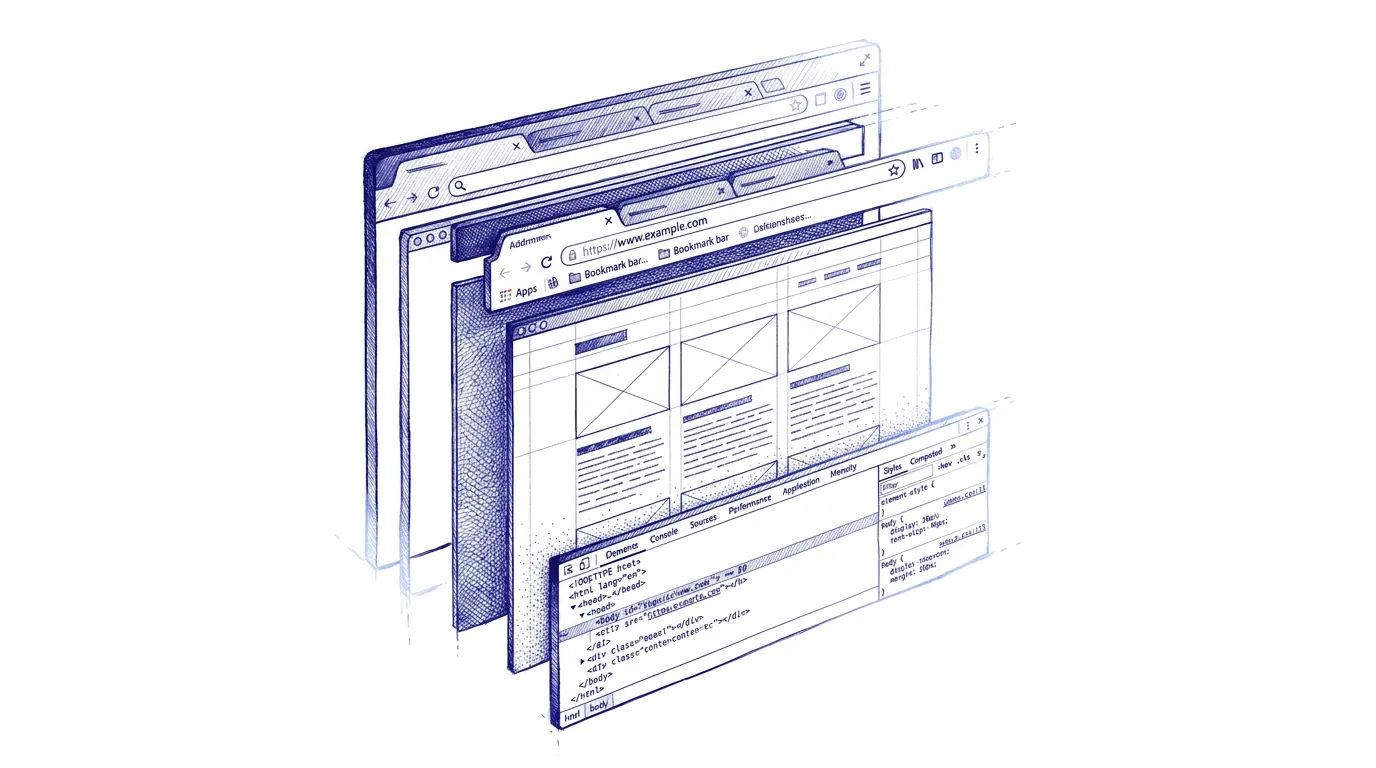
Dev Environments
A terminology guide for designers entering AI-assisted development
Rather than an A–Z list, it follows the shape of a real workflow: from your local machine, to version control, to the browser, to deployment, and into AI-assisted building.
1. Your Machine
The tools you run locally: your code editor, terminal, and project files
IDE (Integrated Development Environment)
The application where you write, run, and debug code. Everything you need in one place. The most popular today is VS Code.
Terminal / CLI (Command Line Interface)
A text-based interface for controlling your computer by typing commands. Most dev tooling runs through the terminal.
Typing
npm installin the terminal downloads all the packages a project needs. Typingnpm run devstarts your local development server.
Localhost
Running your project on your own computer so only you can see it. The URL is usually something like http://localhost:3000. Nothing you do here affects any live version.
You run
npm run dev, open a browser, and go to localhost:3000 to see your prototype running.
npm / yarn (Node Package Manager)
Tools for installing and managing packages in your project. You'll use one of these constantly.
npm install framer-motiondownloads the Framer Motion library.npm run buildtriggers the build process.
Node.js
A runtime that lets JavaScript run outside the browser. Most modern frontend tooling requires Node.js to be installed.
Before starting any JavaScript project, you need Node.js installed. Once it's there, you rarely think about it. It just enables everything else.
.env file (Environment Variables)
A hidden file that stores sensitive values (API keys, passwords, database URLs) outside of your code. These are never shared or committed to a repo.
Your .env file might contain
NOTION_API_KEY=secret123. Your code reads that key without it ever being visible in the codebase.
Config file
A file that stores settings for a tool or framework. Common examples: tailwind.config.js, next.config.js.
In a Next.js project, a config file tells the framework which domains are allowed for images, or which paths to treat as static pages.
Linter
A tool that automatically scans your code for errors and style inconsistencies. Grammarly, for code.
ESLint might warn you that you declared a variable but never used it, or that you're missing a required dependency.
Boilerplate / scaffold
A starter template that gives you a working project structure out of the box.
npx create-next-appscaffolds an entire Next.js project in seconds. Folder structure, config files, and a working home page all ready to go.
2. Git & Version Control
How code is tracked, shared, and collaborated on across teams
Git
The most widely used system for tracking changes to code over time. It lets you save snapshots of your project and see the full history of every change.
Git is like a very detailed version history. You can go back to exactly what your code looked like two weeks ago, or see who changed a specific line and why.
GitHub
A platform for hosting Git repositories online. Think of it as Figma for code: a shared, cloud-based home for the project.
Your developer pushes their code to GitHub. You can open the repository in a browser and see every file, every change, and every comment.
Repository (Repo)
The project folder, but with complete version history attached. Every file, every change ever made, and every discussion about that code lives in the repo.
When a developer says 'I'll share the repo with you,' they're giving you access to the project on GitHub so you can view the code or contribute.
Branch
A parallel copy of the codebase where you can make changes without affecting the main version. Like duplicating a Figma file to experiment. You work on the copy, and merge it back when ready.
A developer creates a branch called
feature/login-redesign, builds the new login flow there, and merges it into main once it's tested and approved.
Main / Master
The primary branch. The official, production-ready version of the code. Most teams protect it so nothing gets merged in without a review.
Code only reaches 'main' after it's been reviewed, tested, and approved. What's on main is typically what's live in production.
Behind / Ahead
Numbers shown on the GitHub branches screen that tell you how out of sync a branch is with main. "1 Behind" means main has 1 commit this branch hasn't received yet. "2 Ahead" means this branch has 2 commits that haven't been merged into main.
You see your branch is "1 Behind, 2 Ahead", meaning you have 2 new commits ready to merge, but you're also missing 1 recent change that landed on main.
Commit
A saved snapshot of your changes, with a short message describing what changed. Like a version history entry in Figma.
After updating button styles, a developer commits with the message: 'Update CTA button to use new brand colour.'
Push / Pull
Push sends your local commits up to GitHub. Pull downloads the latest changes from GitHub to your local machine.
You finish a change on your machine (push), your colleague downloads your changes to their machine (pull), and continues building on top of them.
Fork
A personal copy of someone else's repository. You fork a repo to experiment or build on it independently.
You find an open-source component on GitHub you want to customise. You fork the repo, make your changes, and use your own version.
Clone
Downloading a copy of a repository to your local machine so you can work on it.
git clone [url]in the terminal copies the entire repository, all files and history, to a folder on your machine.
Pull Request (PR)
A formal proposal to merge changes from one branch into another. It triggers a review process. Teammates can comment, approve, or request changes.
A developer finishes a feature and opens a PR. You might be tagged to review it, leave a comment, and then approve it.
Merge Request (MR)
The same concept as a Pull Request, but the term used on GitLab instead of GitHub. Functionally identical. The name difference is just platform convention.
If your team uses GitLab, they'll say 'I'll open an MR for this.' On GitHub, the same thing is called a PR.
Merge
The act of combining changes from one branch into another. Once a PR is approved, the branch gets merged.
After the PR is approved, the developer merges the feature branch into main. The new feature is now part of the official codebase.
Conflict
What happens when two branches have made different changes to the same part of the same file, and Git can't automatically decide which version to keep.
Two developers both edited the same line in a component file. Git flags the conflict; one of them opens the file, sees both versions, and decides what the final version should be.
In practice: the Git workflow
Day-to-day, you don't need to think about Git much. When you hit a good milestone (finished a screen, happy with a feature) run:
That's it. That snapshot is now on GitHub as a fallback. If you ever need to roll back, GitHub has every committed version in the history and you can restore any of them.
For bigger experiments or risky changes, create a branch first:
Work on it, commit as you go, then push the branch:
This keeps main as your stable, known-good version. If the experiment works, merge it in. If not, delete the branch and nothing is lost.
3. The Terminal: Commands Decoded
What those commands actually mean, word by word
Terminal commands follow a simple pattern: tool action target. Once you recognise the parts, they stop feeling like magic spells.
cd (change directory)
Navigate into a folder. Everything after cd is the path.
cd /Users/hendri/swissborg-walletmoves you into the swissborg-wallet project folder. Same as double-clicking into it in Finder, but in text.
cd ..
Go up one folder level.
You're inside /components and need to get back to the project root:
cd ..
ls (list)
Show everything in the current folder.
Type
lsand you'll see all the files and folders in your current directory. Useful for checking you're in the right place.
pwd (print working directory)
Show your exact current location.
If you're lost in the terminal, type
pwdand it prints the full path of where you are:/Users/hendri/swissborg-wallet
npm install
Download and install all the packages the project needs. Usually the first thing you run after cloning a repo.
The project's package.json file lists every dependency.
npm installreads that list and downloads everything.
npm run dev
Start the local development server so you can preview your project at localhost.
After running this, open your browser and go to http://localhost:3000 to see your app running locally.
npx [tool] [command]
Run a tool on the fly without installing it permanently. Three parts: npx (the runner), the tool name, and the command to pass it.
npx expo startruns expo, expo receives the instruction 'start', and your React Native dev server launches.
git add .
Stage all your current changes, marking them as ready to be committed. The . means "everything."
Before committing, you stage your changes:
git add .tells Git: include everything I've changed in the next snapshot.
git commit -m "message"
Save a snapshot of your staged changes with a label describing what changed.
git commit -m "Add filter to bookmarks page". The-mflag means 'message', followed by your description in quotes.
git push
Send your committed snapshots up to GitHub.
Once you've committed,
git pushuploads those commits so they're backed up and visible to your team.
git checkout -b branch-name
Create a new branch and switch to it immediately. The -b flag means 'new branch'.
git checkout -b experiment/dark-modecreates a new branch called experiment/dark-mode and moves you onto it.
git push -u origin branch-name
Push a brand new branch up to GitHub for the first time. The -u origin part sets up the connection between your local branch and GitHub.
You only need this the first time you push a new branch. After that, just
git pushworks.
4. The Browser
What happens when your code runs, and the tools built into every browser to inspect it
DOM (Document Object Model)
A live, structured representation of everything on a webpage. The browser builds the DOM from your HTML, and JavaScript can read or modify it in real time.
When you click a button and a modal appears, JavaScript found that button in the DOM, listened for the click, and added a new element, all without reloading the page.
HTML (HyperText Markup Language)
The language that defines the structure and content of a webpage. It describes what things are (headings, paragraphs, images, buttons) but not how they look.
<button>Submit</button>is HTML. It creates a button element. CSS would style it; JavaScript would make it do something.
CSS (Cascading Style Sheets)
The language that controls how HTML elements look: colours, fonts, spacing, layout, animation.
button { background: blue; border-radius: 8px; }tells the browser to render all buttons with a blue background and rounded corners.
JavaScript (JS)
The programming language of the web. It makes pages interactive: responding to clicks, fetching data, updating the DOM, running logic.
When you type in a search box and results appear without the page reloading, JavaScript is fetching and displaying those results in real time.
DevTools (Browser Developer Tools)
A built-in panel in every browser (right-click anywhere → Inspect) that lets you examine the DOM, edit styles live, debug JavaScript, and monitor network requests.
You notice a component has the wrong spacing. You open DevTools, click on the element, and see the CSS applied, then tweak the values live to find the right fix.
Console
One tab within DevTools that displays messages printed by JavaScript: errors, warnings, and custom log messages. If something is broken, the console is the first place to look.
You open the console and see: 'TypeError: Cannot read properties of undefined.' Paste that into Claude and you'll usually get the fix.
Network tab
A tab in DevTools that shows every request the browser makes: fetching images, loading fonts, calling APIs.
You open the network tab and see a call to your Notion API returning a 401 error. That tells you it's an authentication problem, not a code bug.
API call / fetch
A request your frontend makes to a backend or external service to get or send data. The browser sends a request to a URL, and the server responds, usually with JSON.
When your Framer site loads bookmarks from Notion, it makes an API call to Notion's endpoint. Notion responds with JSON, and your frontend displays it.
JSON (JavaScript Object Notation)
A lightweight, human-readable format for structuring data. APIs almost universally send and receive data as JSON.
{ "title": "Bookmarks", "tags": ["Design", "Tools"] }is JSON. Your frontend reads those keys to populate a card's title and filter tags.
5. Build & Deploy
How code goes from your machine to a live URL
Build
The process of transforming your source code into an optimised, browser-ready format.
Running
npm run buildtakes your React project and outputs a single optimised /dist folder ready to upload to a server.
Deploy
Pushing your built code to a server so it's accessible at a live URL.
After approving a PR, it merges into main, which automatically triggers a deploy to Vercel. Two minutes later, the changes are live.
Production
The live environment. What real users see. Code in production has been tested, reviewed, and deployed.
'Don't push that directly to production' means: don't deploy untested code to the live site.
Staging
A live but private environment that mirrors production, used for testing before changes go live.
Before launching a redesigned checkout flow, you deploy to staging and share the link with the team for sign-off.
CI/CD (Continuous Integration / Continuous Deployment)
Automated pipelines that run every time code is pushed. CI runs tests. CD deploys the code if tests pass.
A developer pushes a change. CI runs tests. If any fail, the deploy is blocked. If all pass, CD deploys automatically.
Environment
The context in which code runs: local (your machine), staging (test server), or production (live site).
In your local environment, you might use a test Notion database. In production, the same code points to the real one, controlled by environment variables.
API endpoint
A specific URL that a server exposes for a particular action.
POST /api/bookmarkstells the server to create a new bookmark.GET /api/bookmarksreturns a list of all existing ones.
CDN (Content Delivery Network)
A global network of servers that caches and delivers your static files from a location close to the user.
Your portfolio's images are served from a CDN. A visitor in Tokyo gets them from a server in Tokyo; a visitor in London from one in London.